
Assign cXML licenses
To be able to use an OCI system, you must assign your purchased licenses from the AGIQON Connector Shop to a system.
➔ If you have any questions about this, please refer to the general facility General configuration.
There are two places where the licenses must be stored. The system license must be stored in the OCI system that you want to use and the store customer that is used for the punchout must be added to a customer license.
1. Assign system license to a cXML system
To store a system license, go to the “General” tab and the “License” field in your cXML system.

You can find the license key for the use of an OCI system in the AGIQON Connector Shop in your customer account at https://agiqon-connector.de/en/account/license.
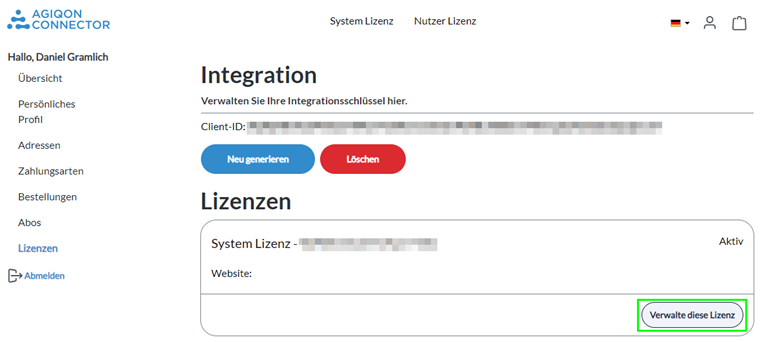
You will see all your licenses listed here. To access the license key, click on the button with the inscription “Manage this license” for a license with the designation “System license”.
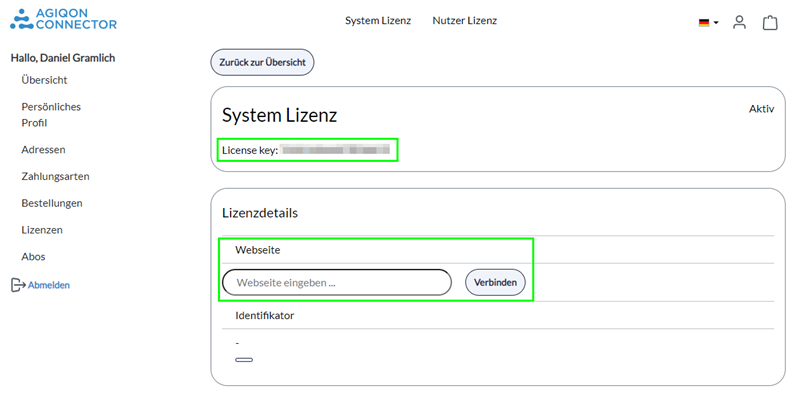
You will then see the details and the license key. Enter the URL of your Shopware store under “Website” and click on “Connect”. Also copy your license key, which must then be entered in your Shopware backend in the cXML system.
Now switch back to the backend of your Shopware store. Go back to “Extensions” → “cXML systems” and select the system you want to activate from the overview. Using the “Edit” button at the top right, you can now enter the license key copied from the customer account in the “General” tab under “License key”. Then save and the license key will be stored correctly.
2. Assign user license to a webshop customer
To store a customer license, go to the “Customer” tab in your cXML system. Here you will find the options for adding a customer license to a customer.
The customer with whom the license is stored will later be your Punchout customer. This data is then used to perform the cXML jump (i.e. the store customer's e-mail and password are the access data).

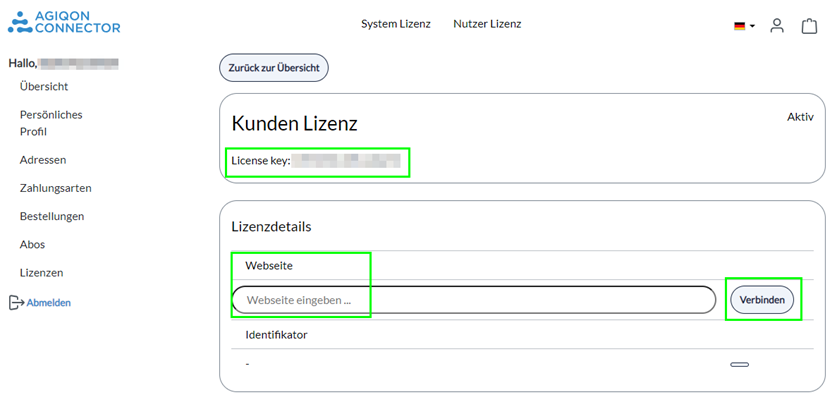
To add a new customer, you need a customer license. You can find this in your customer account at https://agiqon-connector.de/en/account/license. If you have purchased a system license, you should also be able to find a customer license in your customer account. Enter your domain and click on “Connect”. Then copy your license key and return to your store backend.
Now click on the Edit button in the top right-hand corner and then click on the “New customer” button to add a customer.

A pop-up will now open. In the upper part, you can now select the cXML customer from your store customers using the drop-down menu (the customer account must of course be created first).
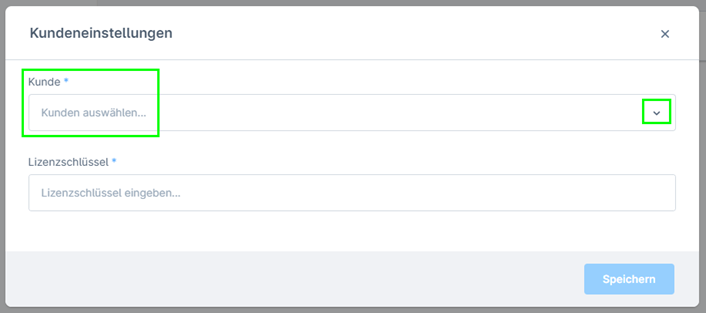
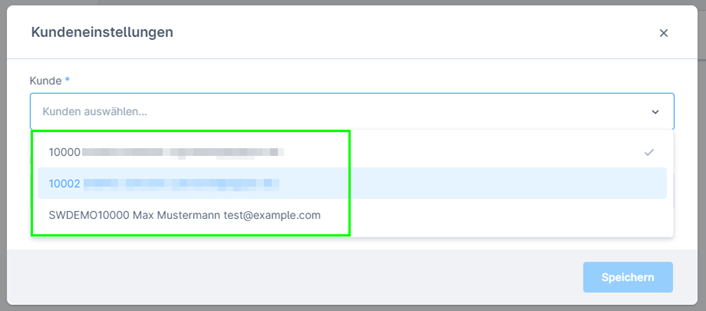
The license key copied from the customer license must then be entered in the lower section. Then save once and the customer is ready to be used for the Punchout.

If you would now like to add more customer licenses to the system, simply go through the steps described above again and add more customers. Please note that you always need one valid customer license per customer.